Play

Så er de ude. To apps. 10 måneders arbejde. Over 500.000 downloads første uge. Øl og kage og glæde. Men også antiklimaks, dårlige reviews og refleksion. TDC Play og YouSee Play, TDC’s relancering af deres streaming-servicer til mobile enheder med tv-kampagne, reklamer og store buzz-words. Jeg startede som konsulent i november og endte som iOS lead i maj med nyt job, kolleger og ansvar. Jeg har trang til at kode, men mest af alt har jeg trang til at kode ordentligt, og jeg tror, det var en stor del af grunden til, jeg blev ansat.

Det var alt i alt et projekt præget af bureaukrati, micro-management og svag beslutningsvilje men alligevel med god stemning, effektiv udvikling og topprioritet fra ledelsen. To apps, der deler kodebase, men varierer i brand og farver og grafik, var egentlig en mindre udfordring end forventet. Versionsstyringsteknikker som git flow blev sat på prøve, når der var hotfixes til det ene brand, mens udvikling af funktionalitet var fortsat på det andet. Det tog tid at lære og bruge, men det gik. Byggeserveren er efterhånden holdt op med at brokke sig, lige når det passer aller dårligst. Daglige UI tests og velintegrerede, automatiserede byg, signering og distribution fremskaber efterhånden kun et surt opstød i ny og næ.

Små 40.000 linjers kode senere sidder vi tilbage med en vellavet, robust og gennemtestet app med avanceret netværksovervågning, stor mænge dynamisk indhold og imponerende fejlhåndtering. Ingen AirPlay og ingen Chromecast endnu – nogle ting er lettere sagt end gjort – men alligevel en god start. Og nu, fase 2!

Shitty Products

My new TV is awful. Despite all around great reviews – it’s The Wirecutter’s TV of choice – it’s awful. It routinely thinks it detects 3D signals, the built-in apps are laggy and buggy, the user interface is horrible and non-responsive, and the remote is just as badly designed as every othe TV remote. The user experience overall is just atrocious, and it doesn’t look like it’s much better with other manufacturers. We have become spoiled with the quality of apps found on smartphones, and that just makes the apps of these so-called Smart TV’s look even worse. Many seconds of lag for every tap of a button and not a fluid animation in sight.

I hate industries that are allowed to suck because they unanimously suck together, and TV sets are far from the only market guilty of this. The disruption Apple has created on the smartphone market with the iPhone is a rarity, most markets that make consumer products suck. I mean, even new kitchen appliances like ovens, blenders, toasters or dish washers rarely follow even rudimentary usability guidelines. And this is one of the main reasons I root for Apple, or Nest, or Tesla for that matter. I want good products to prevail.

A New Job

I suppose if I have any inclinations of keeping this blog updated, this is a perfect occasion to do so: I got a new job! The 1st of May I became a senior iOS developer at TDC continuing the work I’ve done there as a consultant since November, now with a bit more focus on the collaboration done in our group of iOS developers, which are all consultants apart from me.

I’m very excited, I’ve come to greatly enjoy working as a consultant at TDC and I still can’t quite believe I’m lucky enough to be paid to do full-time Objective-C coding.

Panasonic ST60

I finally ordered a new television. All major reviews point to the Panasonic ST60 being the best, mid-range set at the moment. Supposedly the image quality is astonishing, and the only obvious downsides for me are the lack of HDMI ports, it only has three, and no socket for component cables, so I need a converter for my old, dying Xbox 360. Regardless, I’m sure I’ll be quite satisfied with the tv, although that won’t make me not rant a bit about how utterly shitty these sets are designed from a user experience perspective (and how sad it is that they now come with on-screen ads!).

Unlike the smartphone and PC market, there is no real focus on user-friendly and well-designed software or hardware among television sets. So since there are no competition (yet) what you get is a big-ass remote filled with buttons you’re never going to use and a horrendous, laggy so-called “SmartTV” experience that you’ll try your best to avoid.

I mean, just look at this:

panasonic-st60-telecommande-g

I count 18 buttons that I’ll never use, but apart from the remote being filled with weird abbreviations, confusing icons, and redundant text, here’s one example of how utterly out-of-date and in need of a redesign the standard tv remote layout is: There is only one button for the AV inputs. I doubt I’m the only one who regularly uses gaming consoles, my Apple TV or similar devices, so why do I have to flip through all of the connected devices one by one to get to the one I need? You seriously could not fit in six buttons for direct access to my external devices? It baffles my mind that no one has done this yet.

And this, my non-existing blog reader, is the main reason I would love for the Apple TV to become a more integral part of the tv-watching experience, maybe even to the point where it becomes the main hub between your tv signal and what you see on the screen.

Star Wars installation at Legoland

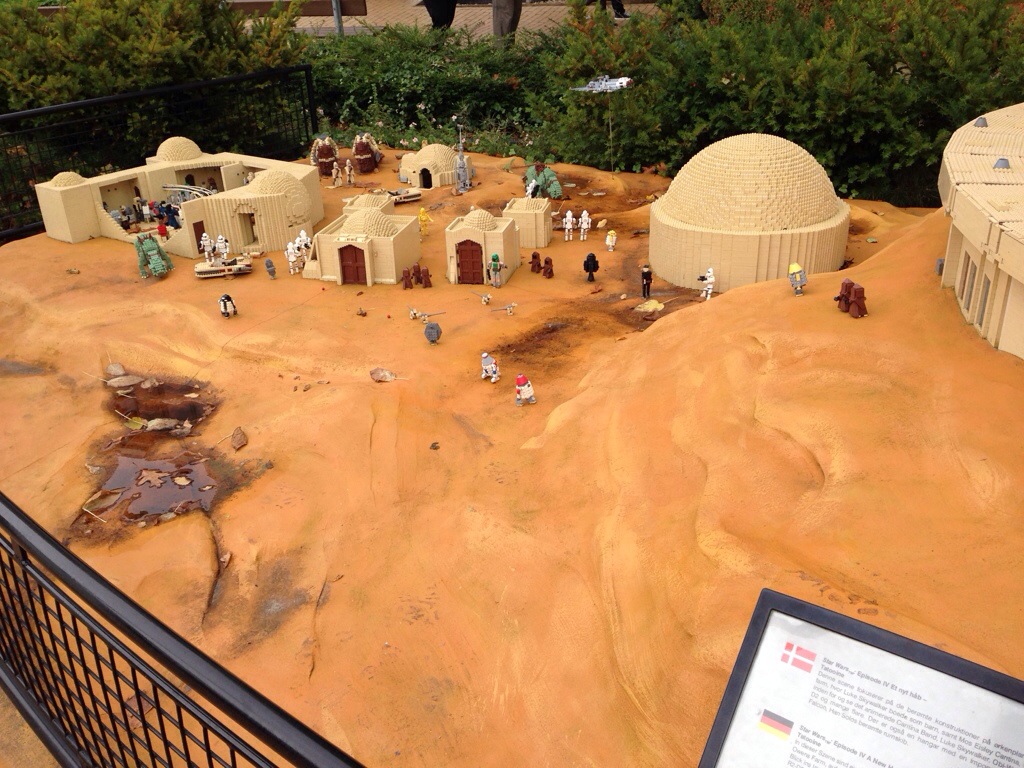
I visited Legoland in Billund for the first time in many years this weekend, and to my surprise they’ve added a big installation with major scenes from all six Star Wars movies. I know the Star Wars property has done a lot for the Lego brand, but I was still impressed by the scenes from the original trilogy, have kids these days really seen those? Anyway, I wanted to share some photos from the installation here!

20131020-153145.jpg

Luke’s home on Tatooine and the Mos Eisley canteena where he and Ben Kenobi meets Han Solo and Chewbacca.

20131020-152614.jpg

Han Solo and the rest escape from Mos Eisley in A New Hope.

20131020-153533.jpg

Battle of Hoth in The Empire Strikes Back.

1-day app: Netflix Regions

I have a growing list of small app ideas – mainly for personal use – but not much time to make them. I’ve also been wanting to get better at using blocks and categories in my workflow, so wanting to get two birds with one stone, I set myself a challenge: create an app from scratch in one day and use blocks and categories extensively while doing so.

When I watch Netflix I use a VPN service to switch between Netflix regions, and I therefore like to be able to search for a film and see which Netflix region, if any, it is watchable in. Since Netflix is no longer accepting developers into its public API program, I’ve been using moreflicks.com. However, they do not have any public API either, so I thought I’d scrape the site to get the needed data into the app. Now, I know this is pretty bad form, but since I’m just going to use this app personally, I think it’ll be okay.

So I created a UITableView and UISearchBar for the results, and a NSScanner to parse the HTML code. Since I just wanted each result cell to show the movie or tv-show title and the available regions, I used iconfinder.com to find some good-looking flag icons and put them in there. I used some built-in block methods and created one myself for setting the flag status, and I used categories to add a HTML entity stripping method to NSString. All in all a learning experience. At the end of the day I ended up with the following interface:

iPhone-5-Black-White-MockUp

It took approximately seven hours, not bad for an app I’m going to use almost daily!

Automatically Resizing Windows Independently of Resolution

I switch from using a 27″ monitor at work to my 15″ MacBook Pro at home, and it’s quite annoying having to resize every application’s window when I switch back and forth between the monitors. On the 27″ monitor I don’t want applications in full screen, but I mostly want this on my MacBook Pro. So what I wanted to solve this was a way to automate resizing specific application windows independently of the current resolution, and I ended up fixing it using a Keyboard Maestro macro.

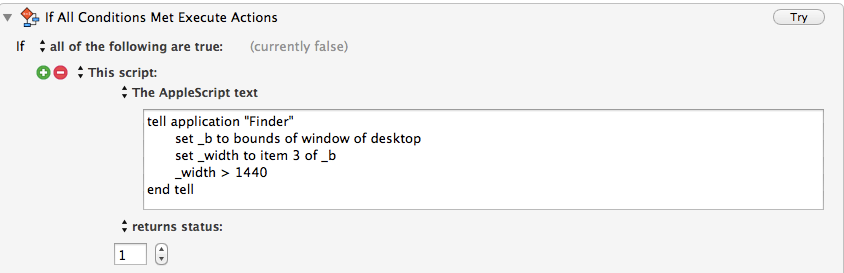
Specifically I created a macro with a hotkey trigger, I chose CMD + Shift + W. I then added a If Then Else action triggered by AppleScript code which checks the current resolution:

tell application "Finder"
    set _b to bounds of window of desktop
    set _width to item 3 of _b
    _width > 1440
end tell

This basically just saves the width of the current resolution into _width, checks if it’s above 1440, which is the resolution width on my MacBook Pro, and returns whether or not this is true. I then trigger the if condition by looking for the status returned by the AppleScript, which looks like this in Keyboard Maestro:

Keyboard_Maestro_Editor01

In the area for actions executed if the conditional is true, I added a Manipulate a Window action configured to Move and Resize Front Window for each application I wanted to resize. As you can see in the screenshot below, I have set the specific screen coordinates where I want the window (you can use the Try button to find this easier by trial and error):

Keyboard_Maestro_Editor02

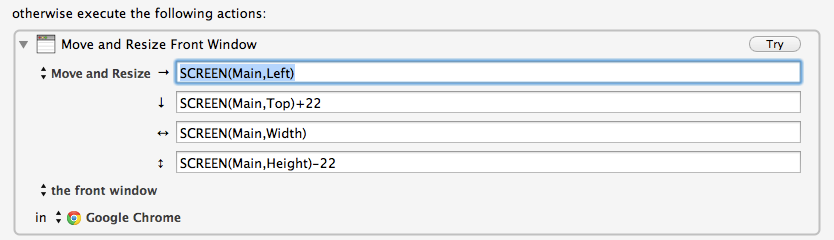
In the area for actions executed if the conditional is false, i.e. when I’m on my MacBook Pro, I again added a Manipulate a Window action for each application I wanted to resize. In the screenshot below I wanted the application to become fullscreen, and this is what you see after selecting Move & Resize -> Custom -> Fullscreen:

Keyboard_Maestro_Editor03

And that’s basically it. Now I just tap CMD + Shift + W, the script checks the current resolution and resizes and moves the windows accordingly. I uploaded the macro here, as well. You need to make adjustments for your own resolution, but it’s probably easier to just download the macro instead of re-creating it manually.

Boonie Bounce lanceret i Danmark

Siden august har jeg været med til at udvikle et iPhone-spil for børneuniverset MovieStarPlanet. Spillet er udviklet i Unity, og jeg har udover scripting dertil programmeret vores in-game butik til In-App Purchases og kommunikation med MovieStarPlanet’s login-service, som benytter sig af SOAP. App’en blev lanceret i Danmark i sidste uge, og pga. MovieStarPlanet’s ret imponerende markedsføringsorgan var app’en den mest downloadede i Danmark op til weekenden. Det er vores første iPhone-spil ved GearWorks, og vi er ganske spændte på modtagelsen (og salgstallene).

Codesign: Re-Signing an IPA between Apple accounts

This guide is based on Tom Gersic’s guide. I chose to rewrite it since Tom’s original contains some formatting errors.

If you’re ever in a situation where you’re developing an iOS app for a company who wants it to be uploaded using their own developer account, this guide is for you. Following the steps below you can switch out your own provisioning profile with your client’s. This is also useful for testing your final App Store distribution build by re-signing the build with an Ad-Hoc profile of your own.

If you’re following this guide to send an .ipa to a client, make sure to sign it with an Ad-Hoc provisioning profile, not an in-house one, since that violates Apple’s license agreement (more details in the original article).

Bundle ID

Re-signing only works if the Bundle ID is the same for both profiles. If the client is using a Bundle ID called com.somecompany.greatapp, you would create a Bundle ID called com.somecompany.* and use that for your provisioning profile.

Re-Signing the App

Now you can go ahead and re-sign the app. However, you would need your client’s provisioning profile, so this would be done by someone on their end.

  1. Open Terminal.app and go to the location of your .ipa file.
  2. Unzip the IPA file (they’re just zip files renamed to .ipa). This will leave you with a folder named “Payload”.
    unzip AwesomeApp.ipa
  3. Delete the _CodeSignature from within the .app bundle
    rm -rf Payload/AwesomeApp.app/_CodeSignature
  4. Replace the embedded.mobileprovision file with your own .mobileprovision profile
    cp ~/Documents/MyOwn.mobileprovision Payload/AwesomeApp.app/embedded.mobileprovision
  5. Use codesign to replace the existing signature using a certificate in your keychain to sign the app. In this example, I would need to have a certificate named “iPhone Distribution: Marcus Mattsson” under “My Certificates” in Keychain Access. When you run this command, you’ll be asked to allow codesign to access this certificate. Choose to “Allow” or “Always Allow”
    /usr/bin/codesign -f -s "iPhone Distribution: Marcus Mattsson" --resource-rules Payload/AwesomeApp.app/ResourceRules.plist Payload/AwesomeApp.app
    Note: You may get this error here: “object file format unrecognized, invalid, or unsuitable”. To fix this, run this in Terminal export CODESIGN_ALLOCATE=/Applications/Xcode.app/Contents/Developer/Platforms/iPhoneOS.platform/Developer/usr/bin/codesign_allocate and retry step 5. (The reason for this is that Mac OS X’s built-in codesign_allocate is out-dated)
  6. The last thing you need to do is to zip that Payload folder back into an .ipa file. Do do that, just use the zip command
    zip -r AwesomeApp_inhouse.ipa Payload

And there you go!

Using Status Board at GearWorks

I’ve loved Panic’s Status Board app since its launch, and since we’re on the brink of launching two products – the iOS app Boonie Bounce and the web game Mindehimlen – it’s the perfect time for some nicely formatted visualizations of usage data. So we at GearWorks bought an Apple TV and I found a bunch of widgets to suit our needs.

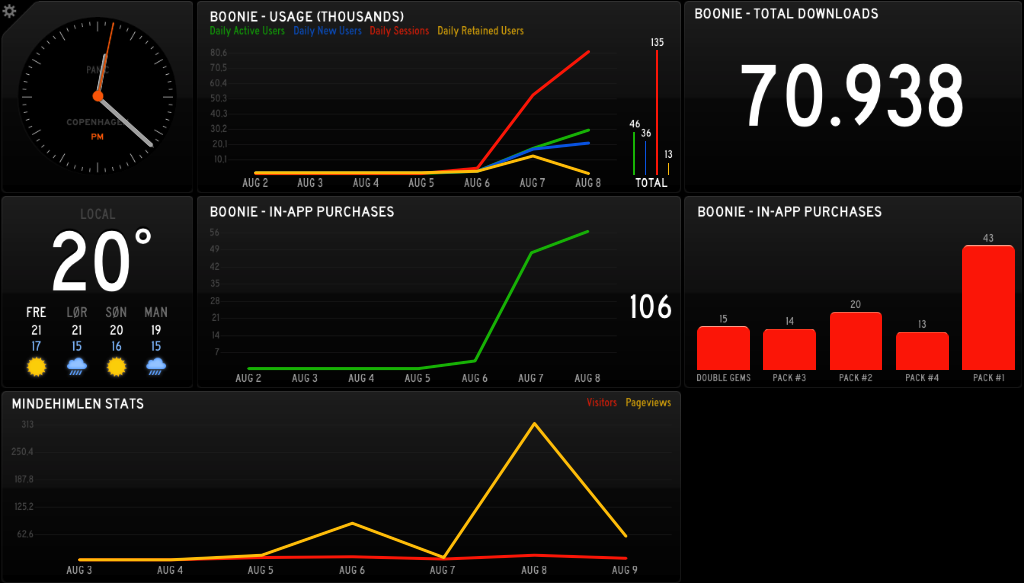
Mindehimlen runs Google Analytics, and I was lucky to find a PHP script which fetches visitor count and page views for a specified site, so that was quite easy to get going. Boonie Bounce runs Flurry Analytics, and while I found a Flurry widget, it was written in Ruby, and I really just wanted it to run on our web server in PHP, so I made a port. I then modified it to suit our specific needs, so we now have two line graphs, and two bar graphs, showing daily usage (active users, new users, sessions, retained users), daily in-app purchases, total downloads, and what kind of in-app purchases people have made. It looks like this:

Status Board @ GearWorks

Note: The data in the screenshot is made up for testing.